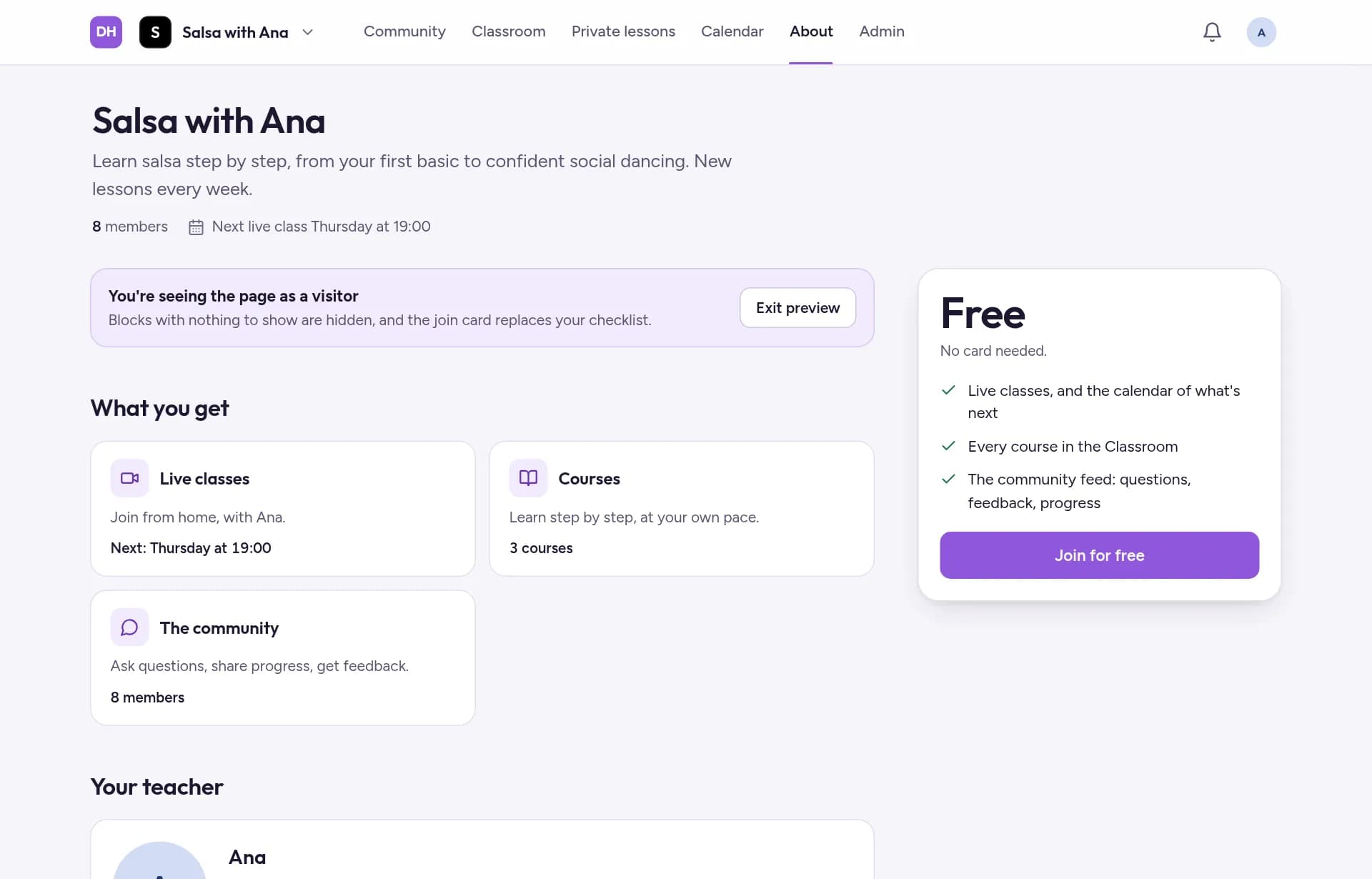
Edit your About page
Your About page is what visitors see before they join. Add your story and a welcome video, arrange the blocks, and check it as a visitor.
Open the editor
Go to your community's About page. On a phone, tap More at the bottom, then About.
The Page checklist shows what's still missing, such as a welcome video or your teacher bio. Tap Add or Set up next to an item to do it now.
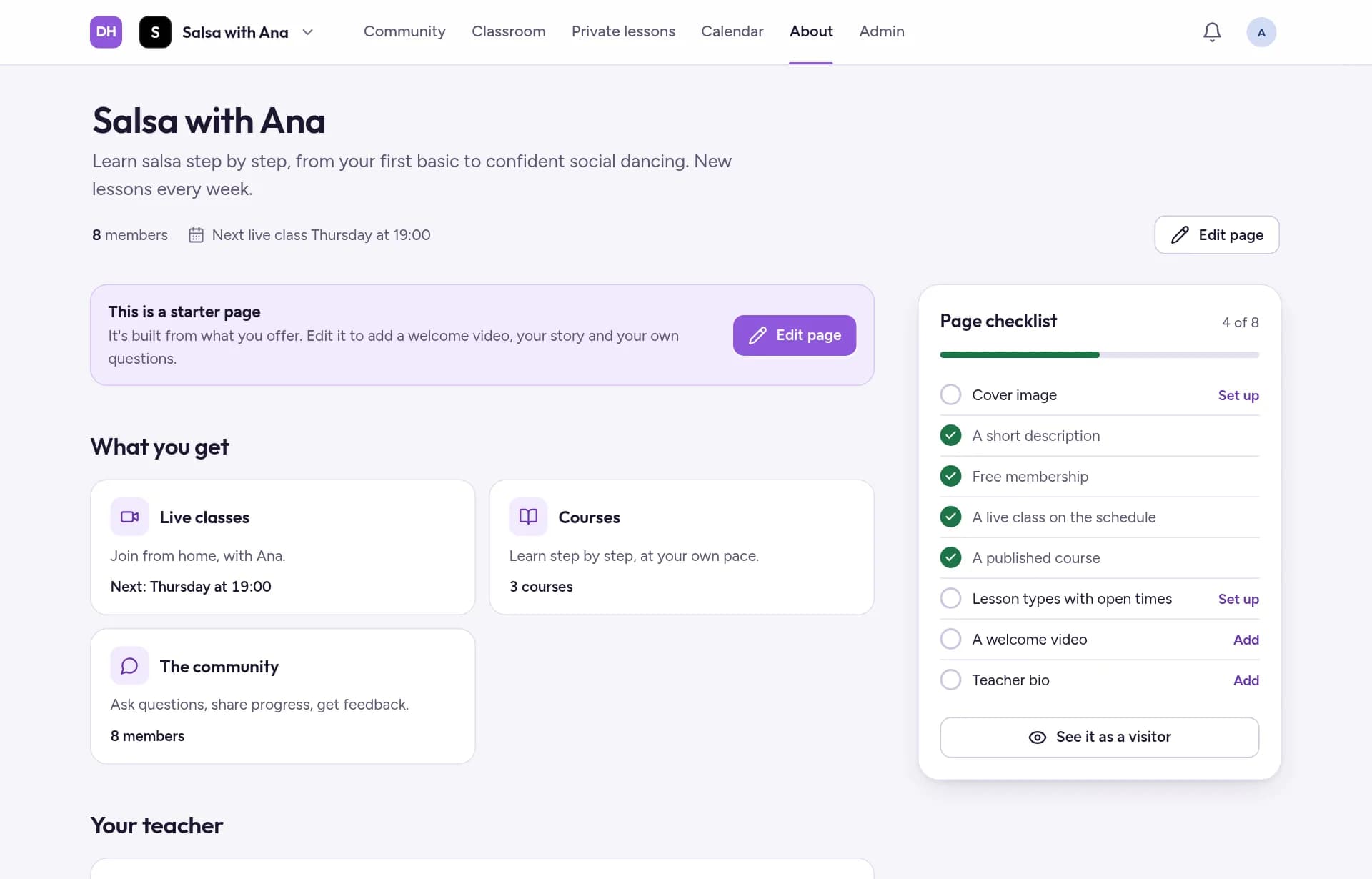
Tap Edit page to change the page itself.
Arrange the blocks
The page is made of blocks. Each one has buttons to move it up, move it down or remove it, and most have a Section title to rename their heading. Everything saves on its own as you go.
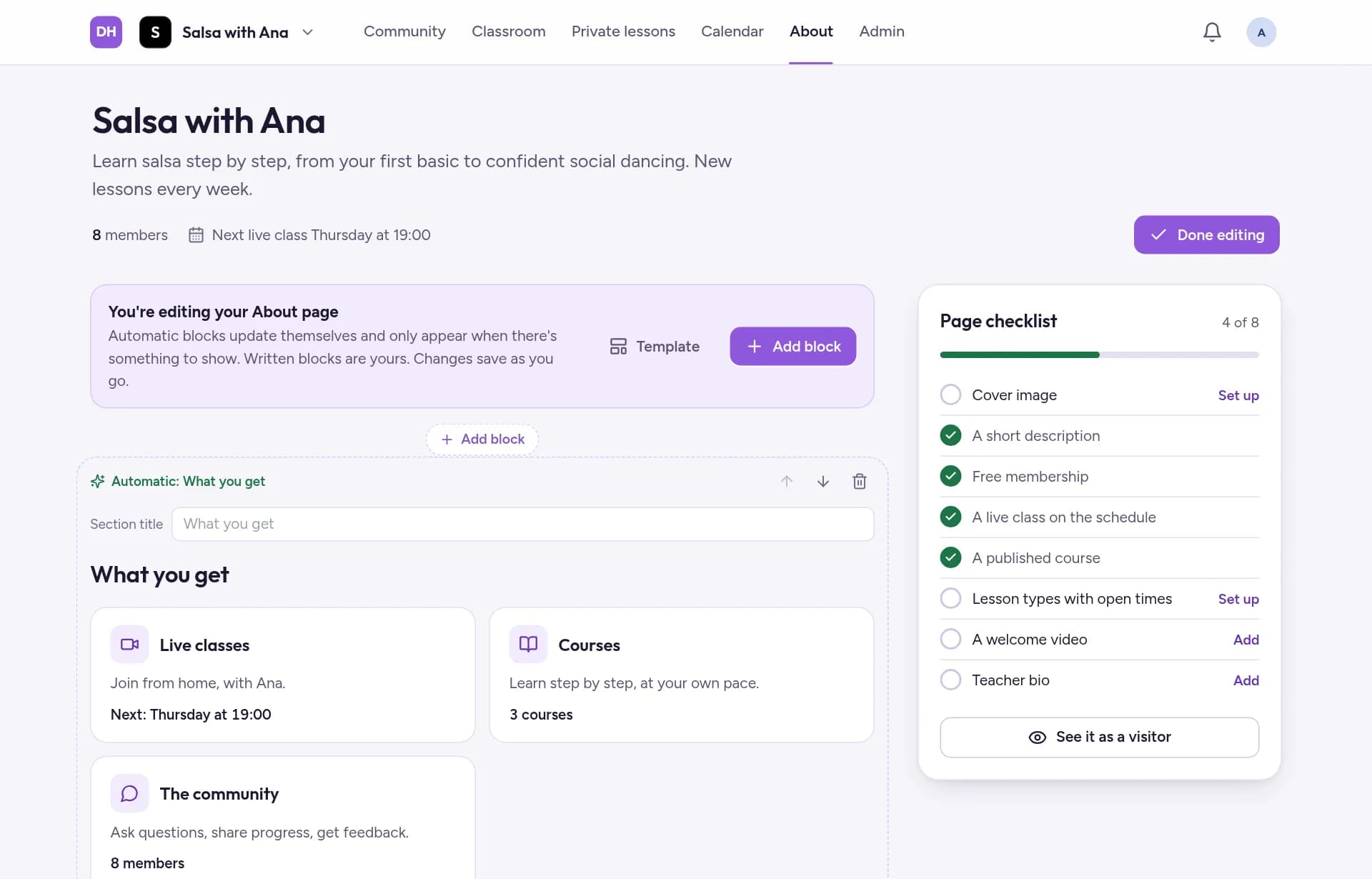
Tap Add block between two blocks to add one there.
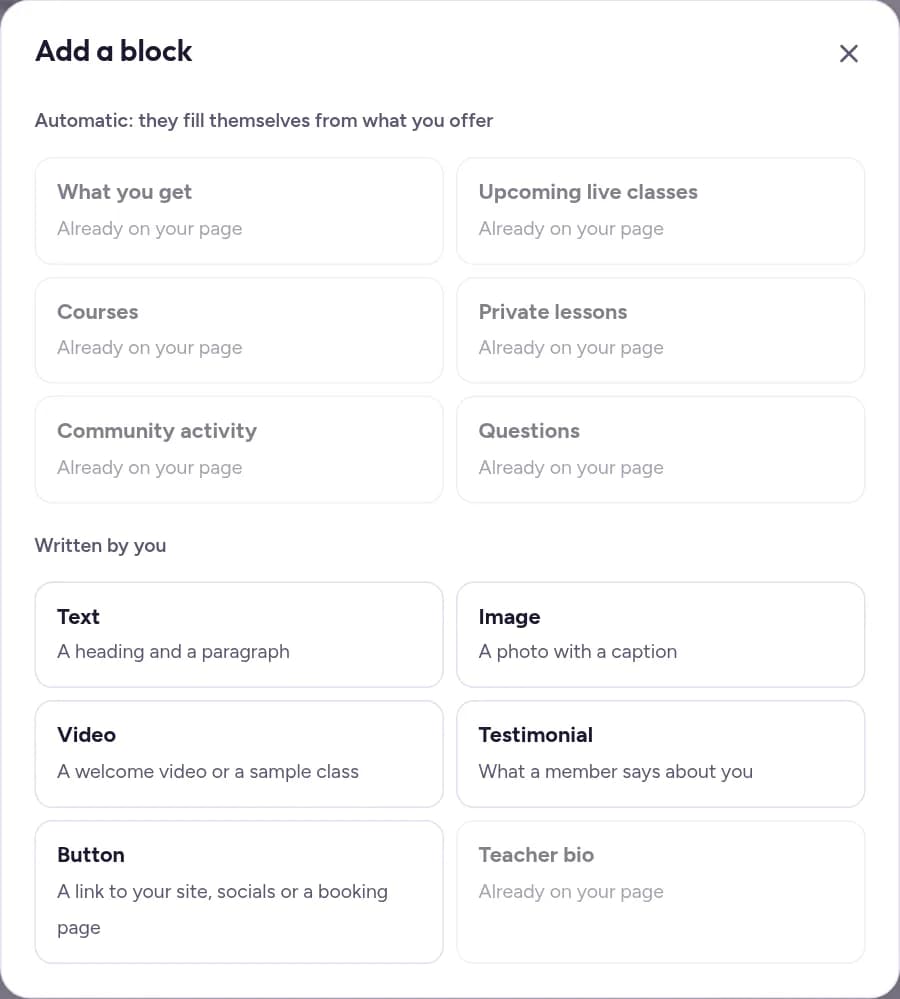
Written blocks are yours to fill: Text, Image, Video, Testimonial, Button and Teacher bio.
Automatic blocks fill themselves from what you offer: What you get, Upcoming live classes, Courses, Private lessons, Community activity and Questions. The Courses block lists your courses in the order you set in the Classroom.
Tap Template to reorder the page around live classes, courses or private coaching. Blocks you wrote are kept, at the end.
Keep the description short
Your community's name, cover image and description appear at the top of the page. You change them in Admin, then Community details. Keep the description to one or two sentences, and tell your full story in a Text block, where you can use headings and lists.
Check it as a visitor
Tap See it as a visitor, under the Page checklist. The page shows exactly what a new visitor sees, with the Join button. Tap Exit preview to return.