Run your community from your phone
Find your way around on a phone, add Dance-Hub to your home screen, and see what each button does.
Find your way around
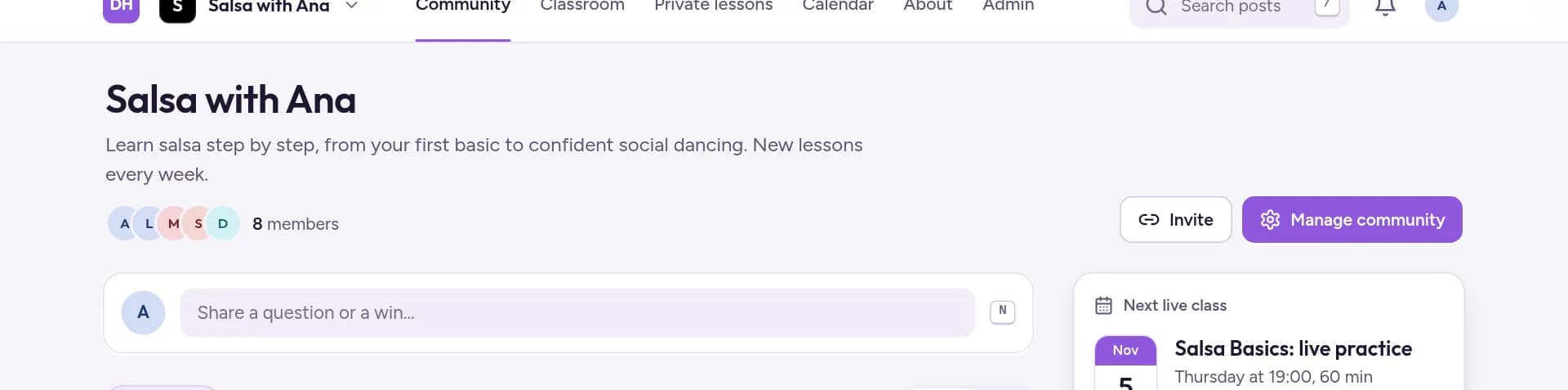
On a phone, the bar at the bottom of the screen takes you to Community, Classroom, Lessons (your private lessons) and Calendar. Tap More for your About page, Admin, Switch community, My dashboard and Settings.
Add Dance-Hub to your home screen
- On an iPhone, open your community in Safari, tap the share button (on recent iPhones it can be under ••• first), then Add to Home Screen.
- On Android, open it in Chrome, tap the menu (three dots), then Add to Home screen.
Then one tap on the icon opens your community.
See what a button does
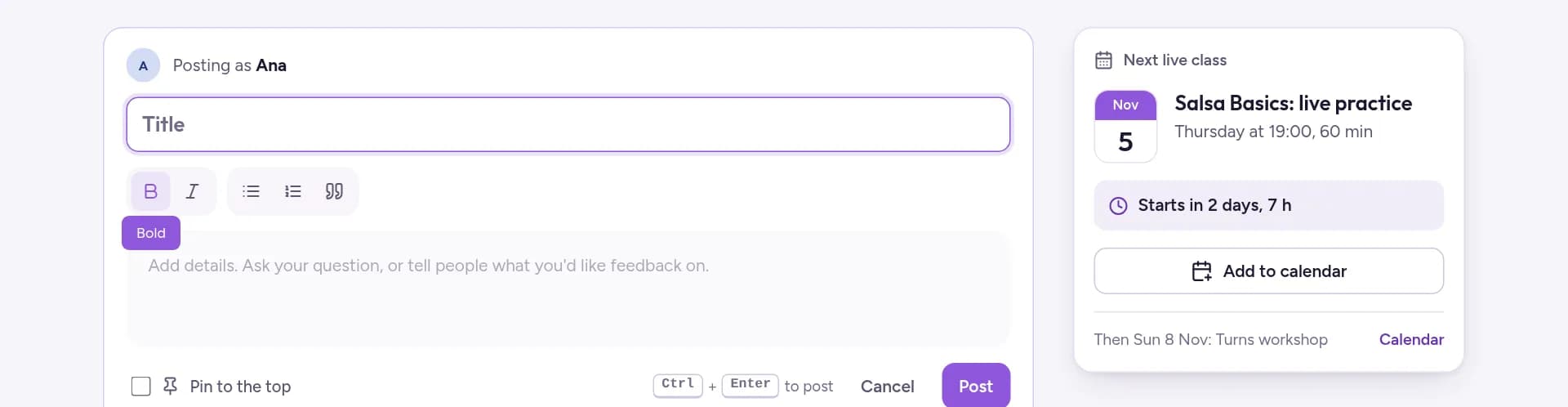
In posts, lesson notes and About page text, the editor's buttons are small icons. Tap one and its name shows for a moment, such as Bold or Heading 1. The tap also applies it.
Upload videos from your phone
When you add a video to a lesson or to your About page, browse opens your phone's photos and videos. Stay on the page until the upload finishes. Read more in Create courses and free preview lessons.
Related guides
- Get started: create your communityCreate your community, choose what you offer, follow the setup list and invite your first members.
- Edit your About pageYour About page is what visitors see before they join. Add your story and a welcome video, arrange the blocks, and check it as a visitor.
- Create courses and free preview lessonsBuild a course with chapters and lessons, publish it, let visitors try a lesson for free, and choose the order of your courses.