Schedule and teach live classes
Schedule a class once or every week, start it from your phone or computer, and keep the recording for your members.
Schedule a class
Go to Calendar and tap Schedule class.
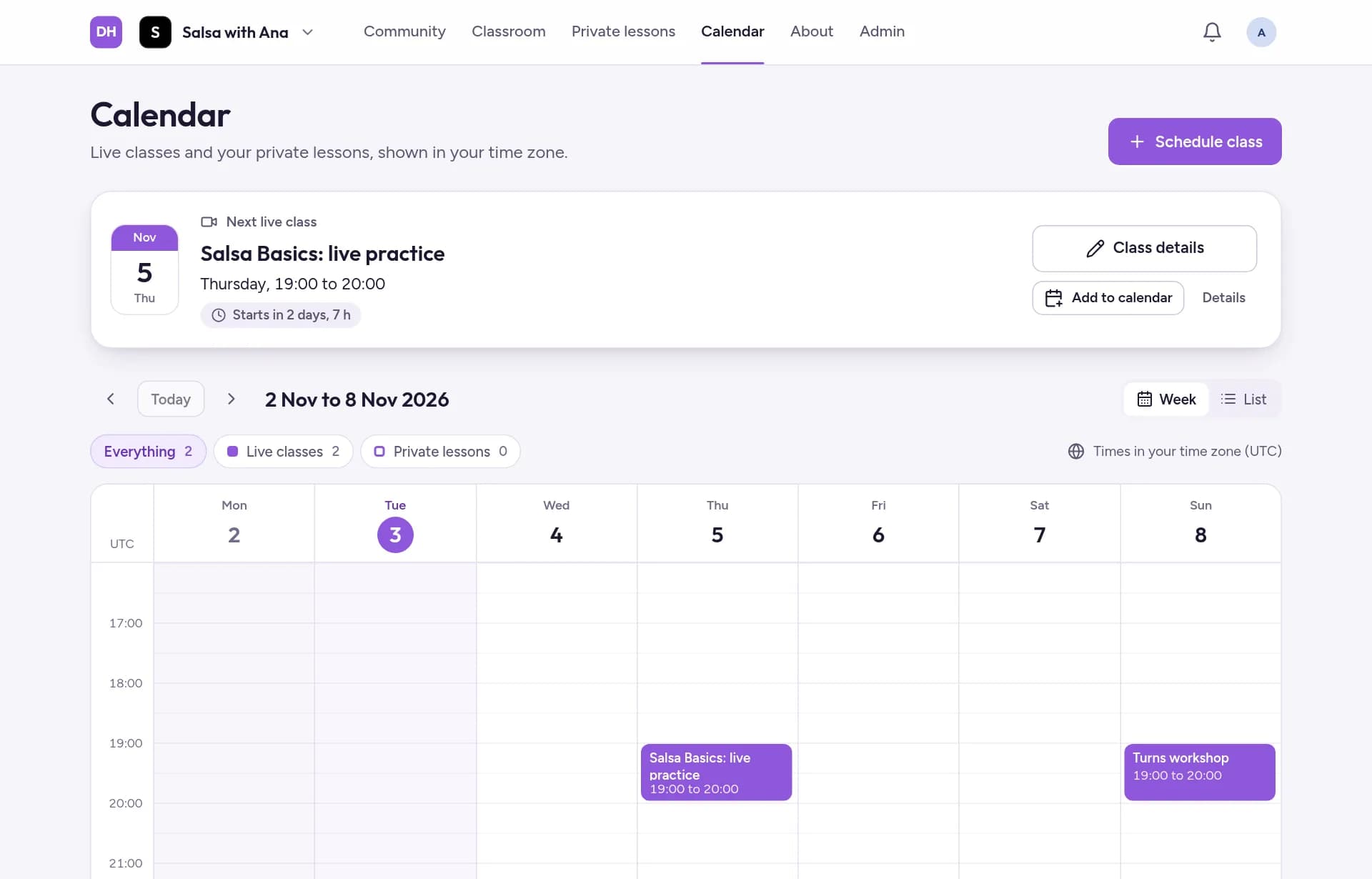
Fill in the Class name, What you'll cover, the Date, the Start time and the Length.
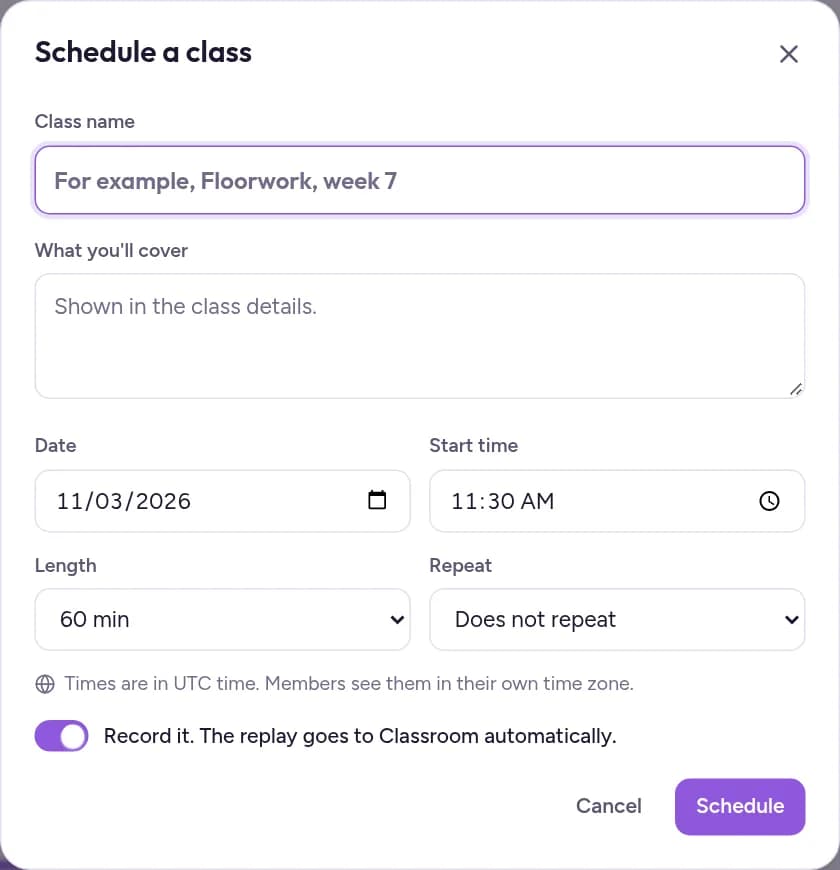
To teach every week, pick a Repeat option, for example every Tuesday for 4, 6 or 12 weeks.
Record it is on by default, so the recording goes to the Classroom. Turn it off if you don't want one, then tap Schedule. Your members get an email reminder about 30 minutes before the class.
Start the class
From 15 minutes before the start, Start class appears on the class in the Calendar. (On your community page, the Next live class card shows Join class, which opens the same class.) Tap it, then Join Live Class, and allow the camera and microphone when your browser asks. Members join with Join class.
Change or cancel a class
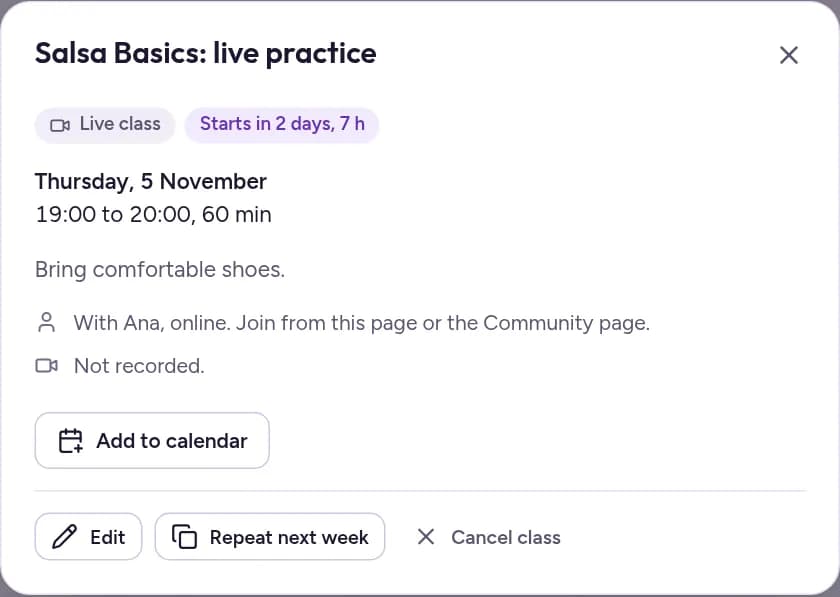
Tap a class in the Calendar to Edit it, Repeat next week or Cancel class.
Share the recordings
A few minutes after a recorded class ends, the recording is added to Live class replays in the Classroom. At first only you can see it:
In the Classroom, tap See all next to Live class replays.
Tap Course settings, choose Published under Who can see it, and tap Save changes. From then on, members find every new recording there.
Related guides
- Create courses and free preview lessonsBuild a course with chapters and lessons, publish it, let visitors try a lesson for free, and choose the order of your courses.
- Offer private lessonsCreate a lesson type with its price and cancellation policy, add the times students can book, and teach booked lessons by video.